 Call
Call

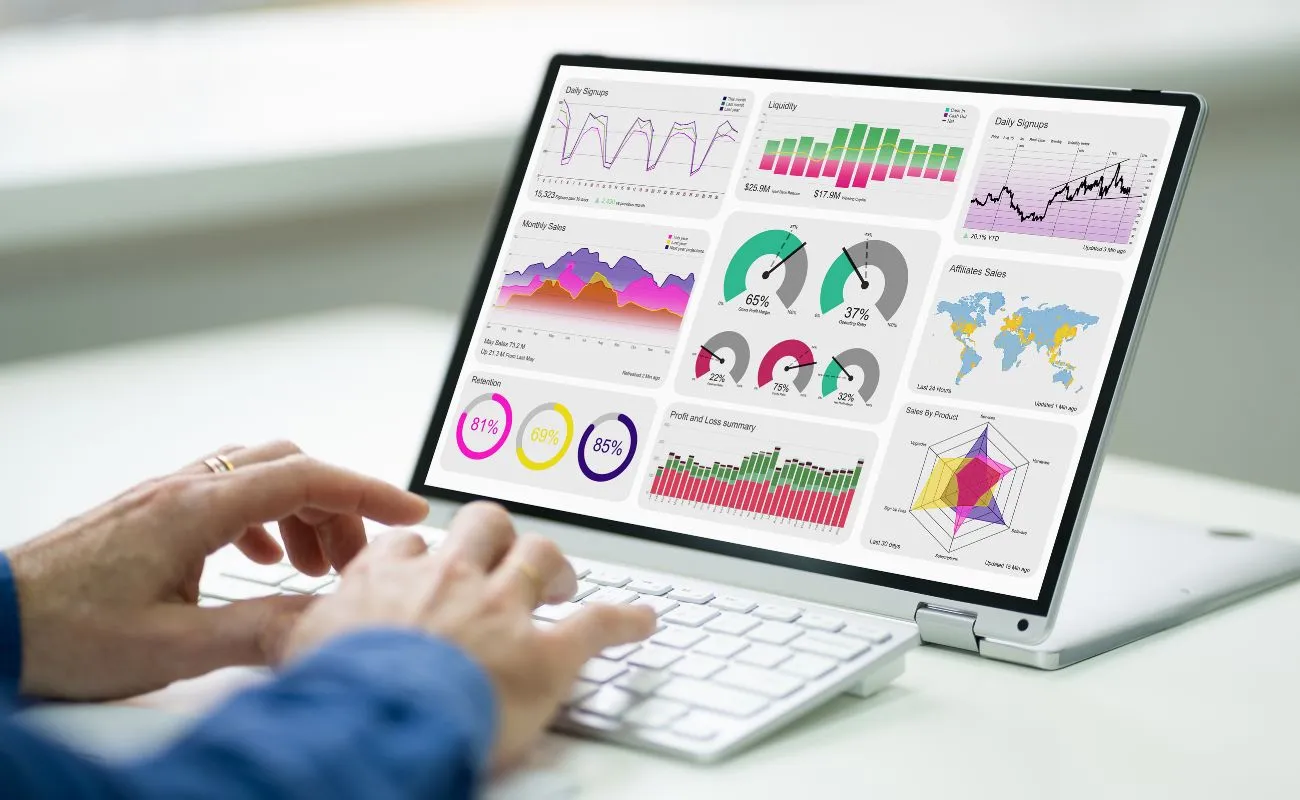

Google Analytics 4 (GA4) marks a significant shift in how you can track and analyze data for your website or app. With GA4, you harness the power of an event-based model, giving you detailed insights into user interactions across multiple platforms and devices. This change from the older Universal Analytics means you now get a more in-depth view of user behavior, from every click and scroll to purchases and beyond.
GA4 simplifies the setup process, enabling you to get started quickly without needing extensive technical expertise. By using Google Tag Manager, you can seamlessly integrate GA4 into your site. This innovative platform also leverages advanced machine learning to provide predictive analytics, helping you anticipate future trends based on current data.
Whether you’re a beginner or just looking to upgrade from Universal Analytics, GA4 offers the tools you need to understand and optimize your digital presence. Dive into this guide to explore the key features and how they can benefit you, ensuring you stay ahead in the ever-evolving digital landscape.
Getting Started with GA4
To start using Google Analytics 4 (GA4), you’ll need to create a Google Analytics account, set up your first GA4 property, and familiarize yourself with the GA4 interface. These steps are crucial for leveraging the full potential of GA4 for tracking and analyzing your website traffic.
Creating a Google Analytics Account
Begin by navigating to the Google Analytics website. Click on Start for free to create a new account. If you already have a Google account, you can use those credentials.
After logging in, click on Admin in the lower-left corner. In the Account column, select Create Account. Name your account, accept the terms, and click Next. This sets up your Google Analytics account.
Setting up Your First GA4 Property
Once your account is created, the next step is to set up a GA4 property. In the Admin section, go to Properties and click on Create Property. Enter a name for your property, your reporting time zone, and currency.
Next, you need to create a data stream. Select Web and enter your website’s URL and name. Click Create Stream. You will then receive a Measurement ID. To add the GA4 tag to your site, use Google Tag Manager, copy the Measurement ID, and create a new GA4 tag. Set it to fire on all pages.
Understanding the GA4 Interface
Navigating the GA4 interface is intuitive once you know the key areas. The Home tab gives you an overview of your data, including user activity and traffic sources. The Reports tab provides detailed analytics, categorized by user behaviors and conversion events.
The Explore tab allows you to create custom reports and analyze data in more depth. The Advertising tab helps you understand the performance of your online campaigns. Finally, the Configure tab is where you manage events, conversions, and user properties. Familiarize yourself with these sections to efficiently navigate GA4 and use its features effectively.
Core Concepts of GA4
Google Analytics 4 (GA4) introduces significant changes and improvements over its predecessor, Universal Analytics. This section explores key concepts essential for leveraging GA4 effectively, including events, conversions, and the enhanced tracking capabilities.
Events and Conversions
GA4 utilizes an event-based data model instead of the session-based model found in Universal Analytics. Events represent user interactions on your website or app, such as clicks, page views, and form submissions.
You can configure events to track specific actions or behaviors. For example, tracking when users play a video or download a file.
Conversions in GA4 are critical user actions defined as key performance indicators. You can mark any event as a conversion. This allows you to track actions that are vital to your business goals, such as completing purchases or signing up for a newsletter. GA4 provides tools for detailed analysis and reporting on these conversions, helping you understand and optimize user behavior.
Data Streams and Measurement
GA4 uses data streams to track data from different sources, such as websites and mobile apps. Each GA4 property can have multiple data streams, allowing you to integrate and compare data across various platforms seamlessly.
To set up a data stream, you need to create it within your GA4 property and assign it a Measurement ID. This ID links the data collected from your platform to your GA4 property, ensuring accurate tracking and analysis.
GA4’s measurement capabilities you can analyze user interactions across different devices and platforms. This enables you to get a holistic view of your user base and monitor cross-platform behaviors effectively.
User ID and Event Tracking
User ID is a feature in GA4 that helps you track individual user behavior across devices. By assigning unique IDs to users, you can connect sessions across different devices and analyze multi-device user journeys.
Event tracking is more flexible and powerful in GA4 compared to Universal Analytics. You can customize events to capture a wide range of user interactions. This allows for granular tracking and insights into specific actions users take on your site or app.
Custom event parameters also help you gather more detailed data about user behavior. This enables you to tailor your analytics setup to meet your specific business needs and goals.
Configuring GA4 for Data Collection
To set up GA4 for effective data collection, you need to properly configure Google Tag Manager, adjust settings for different devices, and enable enhanced measurement and custom events. These steps ensure you capture comprehensive, actionable data.
Utilizing Google Tag Manager
Google Tag Manager streamlines the implementation of GA4. Start by creating a new GA4 property in your Google Analytics account. Next, generate a data stream specific to your website or app.
Within Google Tag Manager, create a new tag and select GA4 Configuration. Paste your Measurement ID from the GA4 setup. Set the trigger for this tag to fire on All Pages to ensure comprehensive data collection across your site. Preview and test the tag to confirm it functions correctly.
Setting up Data Collection for Different Devices
GA4 allows you to track data across various devices such as web, Android, and iOS. Create separate data streams for each device under a single GA4 property. This ensures unified reporting across different platforms.
For each data stream, navigate to the specific platform section in your GA4 setup. Copy the unique Measurement ID for each device. In your tag management system or directly in the app’s code, insert the respective Measurement ID to start collecting data. This structure provides detailed insights tailored to the device type.
Enhanced Measurement and Custom Events
GA4 includes an Enhanced Measurement feature that automatically tracks interactions like page views, scrolls, outbound clicks, site search, and video engagement. Enable this option in your GA4 property settings for enriched data without needing additional tags.
For advanced tracking, you can create custom events. Navigate to the Events section in GA4 and define new events by specifying criteria such as event name, parameters, and conditions. Custom events allow you to capture specific user behaviors and tailor your analytic insights to meet your business goals.
Understanding GA4 Reports
GA4 reports offer various tools and insights to help you track and analyze data in real-time, understand the user journey, and visualize patterns effectively. This section covers three critical aspects of GA4 reporting.
Real-time Data and Insights
Real-time reports in GA4 provide live data about how users are interacting with your website or app. You can see which pages users are viewing, their locations, and the devices they are using.
This enables you to monitor and respond to user activity instantly. Metrics like active users, events per minute, and top active pages are essential for making timely decisions. Real-time insights help identify immediate issues or opportunities for engagement.
Life Cycle and User Reports
Life Cycle and User Reports in GA4 help you understand the user’s journey from acquisition to conversion. These reports are divided into sections such as Acquisition, Engagement, Monetization, and Retention.
The Acquisition report shows where your users are coming from, while the Engagement report tracks their actions on your site. Monetization reports analyze revenue data, and Retention reports show how well you retain users over time. Each piece of data is crucial for optimizing different stages of the user journey.
Exploration and Visualization Tools
Exploration tools in GA4 allow you to dig deeper into your data with customizable reports. You can create detailed charts and tables to visualize intricate data patterns.
Various templates and techniques, including funnel analysis, path analysis, and segment overlap, help you understand user behavior in greater detail. The ability to tailor visualizations makes it easier to communicate insights to stakeholders, offering clarity and effective data-driven storytelling.
Applying GA4 for Business Insight
By leveraging Google Analytics 4 (GA4), you can gain valuable insights into your e-commerce performance, understand customer engagement, and fine-tune your marketing strategies. These capabilities help maximize ROI and revenue while providing a clear picture of your audience’s behavior and preferences.
Leveraging GA4 for E-commerce
For e-commerce, GA4 offers detailed tracking of user interactions across the entire shopping journey. You can monitor activities on the product page, such as views and clicks, and track how users move to the cart and checkout.
This insight includes:
- Product performance: See which items are most viewed or added to cart.
- Cart and checkout behavior: Identify where users drop off in the purchasing process.
Using this data, you can optimize product listings and streamline the checkout flow to boost conversions and increase revenue.
Understanding Customer Engagement
GA4 allows you to analyze how engaged your audience is with your content. Engagement metrics include session duration, pages viewed, and specific actions taken on your site.
Important aspects include:
- User interactions: Measure clicks, form submissions, and other non-purchase activities.
- Engagement rates: See how long users stay on your site and which sections keep them interested.
By understanding these metrics, you can enhance user experience, tailor content to audience preferences, and foster deeper customer relationships.
Marketing Strategies and Campaign Tracking
GA4 enables you to meticulously track and analyze the effectiveness of your marketing campaigns. With advanced event tracking and customizable reports, you can see which strategies drive the most traffic and conversions.
Key components include:
- Campaign source/medium: Determine which channels (e.g., social media, email) deliver the best ROI.
- Conversion tracking: Monitor specific goals, such as form completions or purchases.
This data helps refine your marketing efforts, optimize ad spend, and increase the efficacy of your campaigns.
GA4’s powerful features offer a wealth of information, ensuring you can make informed decisions to grow your business strategically.
Advanced Features and Customization
Google Analytics 4 (GA4) offers a range of advanced features designed to provide deeper insights and more precise control over your data. These features include the use of machine learning and predictive analytics, custom dimensions and metrics, and the ability to set up complex goals and funnels.
Utilizing Machine Learning and Predictive Analytics
GA4 leverages machine learning to provide predictive metrics, which help you anticipate user behavior and actions. Predictive analytics uses historical data to forecast future events, like the likelihood of a user making a purchase.
These insights can inform your marketing strategies and optimize user engagement. Predictive metrics such as purchase probability and churn probability allow you to target users more effectively.
Custom Dimensions and Metrics
Custom dimensions and metrics are vital for tailoring GA4 to your specific needs. Custom dimensions allow you to define unique parameters for your data that are not included by default. This could be anything from user preferences to device specifics.
Custom metrics enable you to measure unique interactions or variables specific to your business. By configuring these correctly, you gain detailed insights into user behavior and can tie this information back to your business goals.
Setting up Complex Goals and Funnels
Setting up complex goals and funnels in GA4 allows you to track user journeys precisely. Goals can be tailored to reflect important business objectives, such as newsletter sign-ups, product purchases, or form completions.
Funnels provide visual representations of user paths through your site or app, enabling you to identify drop-off points and optimize the user experience. By defining multiple stages and conditions, you can gain a better understanding of how users engage with your content.
GA4 Integration and Tools
Integrating GA4 with various platforms enhances your analytics capabilities, and the provided tools ensure smooth configuration and powerful reporting options.
Integrating with Google Ads and Other Platforms
GA4 allows seamless integration with Google Ads, boosting your ability to track campaign performance. By linking your Google Analytics account with Google Ads, you can harness in-depth metrics like conversions and user interactions.
Other platforms can also be integrated, providing a unified view of your marketing efforts. For instance, integrating with e-commerce platforms like Shopify enhances tracking of sales and user behavior. Ensuring the proper setup of your Measurement ID and configuring tags correctly are critical steps to accurate data collection and reporting.
DebugView and Configuration Tools
DebugView is an essential tool for real-time debugging in GA4. It shows live data as it comes into your Google Analytics account, helping you spot issues immediately. This feature is particularly useful during the initial setup and when new events or tags are added.
Configuration tools, including tag setup and user management, enable precise control over your analytics. Setting the correct reporting time zone and verifying configurations through the DebugView ensures data accuracy and reliability, vital for meaningful insights.
Using API for Reporting and Data Import
The GA4 API offers robust capabilities for reporting and data import. You can use the API to extract detailed reports on user interactions, events, and conversions, facilitating custom dashboards and advanced analysis.
Data import functionality allows you to integrate external data into GA4, providing a more comprehensive view of customer behavior. Documentation and resources available from Google make setup intuitive, ensuring you leverage the API effectively. This flexibility is key for businesses needing specialized reporting beyond standard GA4 offerings.
User Privacy and Data Compliance
User privacy and data compliance are paramount in your handling of GA4. Both GDPR compliance and configuring data retention policies are essential to maintain user trust and meet legal requirements.
GDPR Compliance and User Privacy
GDPR, or the General Data Protection Regulation, mandates strict guidelines for data privacy. GA4 provides tools to ensure compliance. You must understand the features that allow you to manage user data ethically and transparently.
GA4’s Consent Mode adjusts data collection based on user consent. This lets you respect user preferences for data collection. Furthermore, data anonymization features in GA4 help protect users’ identities while still allowing for valuable analysis.
Regularly review your privacy policies and update them to reflect changes in data handling procedures. Communicate these policies clearly to users, ensuring they understand how their data is used and protected.
Data Retention and Privacy Settings
Data retention policies in GA4 let you decide how long to keep user data. This is vital for both analytics and compliance. You can configure retention settings to a duration that aligns with your business needs while prioritizing user privacy.
GA4 allows for data to be stored for varying periods, automatically deleting data that exceeds the specified timeframe. This helps in minimizing risks associated with storing obsolete data.
Incorporate privacy settings such as user IP anonymization and restricted data sharing options. These settings reduce the risk of data breaches and unauthorized access. Always strike a balance between retaining enough data for insightful analysis and respecting user privacy expectations.
By utilizing these feature settings effectively, you can maintain robust data privacy and compliance practices in GA4.
Migrating from Universal Analytics to GA4
Migrating from Universal Analytics (UA) to Google Analytics 4 (GA4) involves understanding key differences between the two platforms and effectively transitioning your properties and data models.
Understanding the Differences Between UA and GA4
UA uses a session-based data model, while GA4 adopts an event-based model. This shift impacts how data is collected and analyzed. In UA, interactions such as page views and user engagement are tracked in sessions.
GA4’s event-based model captures every interaction as an event, offering more granular insights.
Example of an Event in UA vs. GA4:
| Universal Analytics | GA4 | |
|---|---|---|
| Page View | Session-based | Event-based |
| Button Click | Tracked as a goal | Tracked as an event |
GA4’s approach allows you to track more detailed user interactions. Automatic event tracking and enhanced measurement provide deeper insights with less manual configuration.
Transitioning Properties and Data Models
Start by creating a GA4 property in your Analytics account. Use the GA4 Setup Assistant to connect it to your existing UA property. This will ensure that both properties run in parallel, allowing you to compare data.
Export historical data from UA. Options include manual export, using the Google Analytics Sheets add-on, or the Google Analytics API v4.
Steps to Transition:
- Create GA4 property.
- Connect UA and GA4 properties.
- Export historical data from UA.
- Implement GA4 tracking code on your website or app.
For e-commerce, set up key purchase events in GA4 and link them to Google Ads for better campaign integration. This allows you to leverage GA4’s advanced features like predictive metrics and automated insights.
Focus on detailed and methodical migration to avoid data discrepancies and ensure a smooth transition.
Leveraging Insights for Growth
GA4 offers powerful tools to analyze user behavior, optimize performance metrics, and identify growth opportunities. By understanding user journeys and key performance indicators, you can enhance your digital strategies effectively.
Analyzing User Journeys and Retention
Tracking user journeys from their initial visit to loyal engagement is essential. GA4 provides insights into engaged sessions, illustrating how users interact with your site. By assessing traffic acquisition metrics, you can pinpoint which sources lead to the most valuable visitors.
Identify demographic data to understand your audience’s age, gender, and interests. This helps tailor content and marketing efforts. Focus on retention metrics: the cohort analysis feature in GA4 shows how groups of users behave over time, revealing patterns and optimizing retention strategies.
Performance Metrics and Optimization
Monitoring key performance metrics enables you to identify areas for improvement. Use GA4 to analyze site traffic and pinpoint bottlenecks that hinder performance. Track metrics such as bounce rates, session duration, and conversion rates to gauge user satisfaction.
Optimize your site using these insights by adjusting content, improving load times, and enhancing user interface. Regularly review traffic acquisition data to refine marketing strategies and allocate resources effectively. By systematically analyzing and optimizing these metrics, you ensure sustained growth and improved user experience.
Interested in scaling your business?
Get in touch with us here. We look forward to working with you.